Updated 20 October 2026 · Web guide · 8 languages. Older store apps may not include new features yet. The browser gallery reflects the current web version.
No chapters found. Try a shorter term or show all chapters.
✦
Getting started
01For hosts
Create a gallery
+
Give your celebration one shared home for photos. Guests will not need an account.
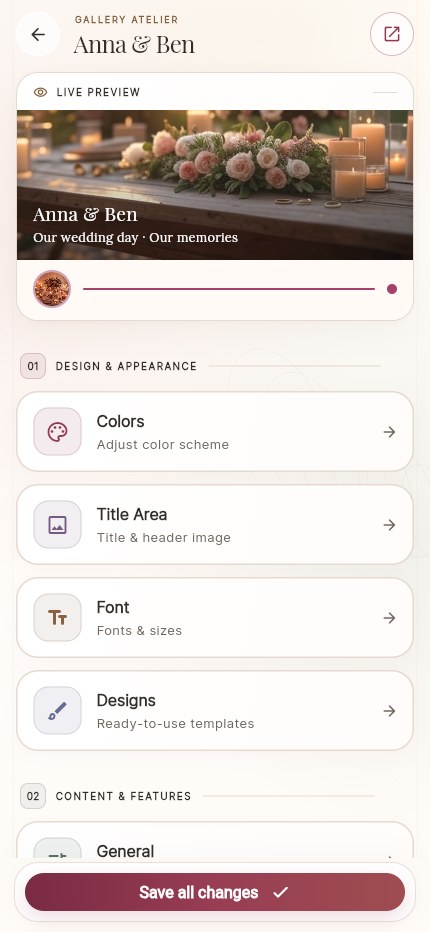
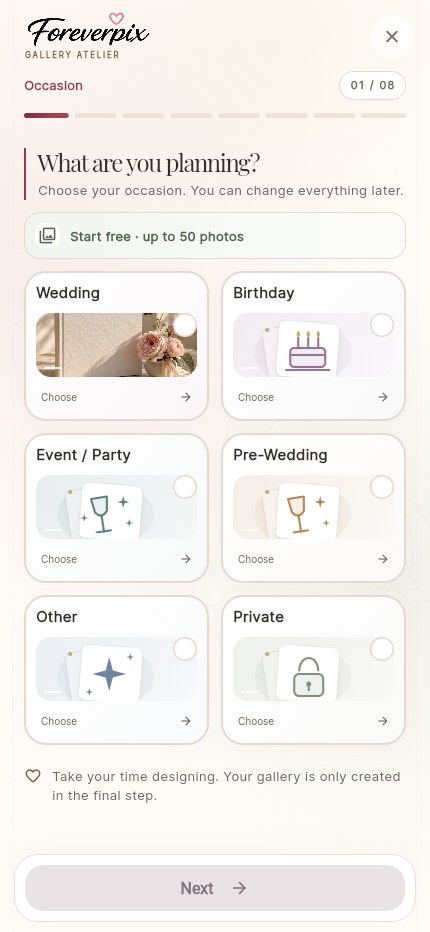
Open the gallery creator on the website and choose your occasion.
Enter a name and event date. Choose a design, fonts, pictures and the features you want.
Check visibility and the summary. Creating a free gallery does not require a purchase; choose an upgrade separately if needed.
Enlarge screenshotActual web interface with local sample data. Appearance and available controls may vary by device and permissions.Back to top ↑
02For hosts
Secure your host access
+
A guest link and a management link serve different purposes.
If you created without an account, use the offered option to secure your gallery with an email address or connect it to your account.
Keep management access safe and check that you can reopen and manage the gallery.
With an account, use My albums. For a printed card set, use its separate admin card.
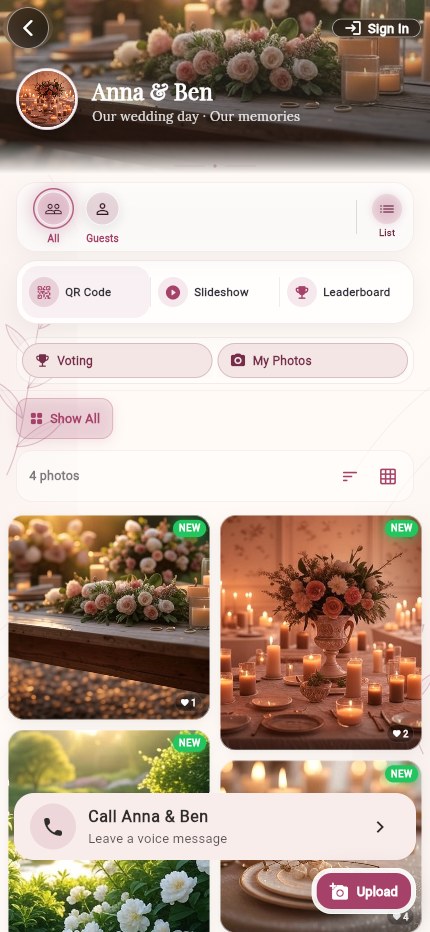
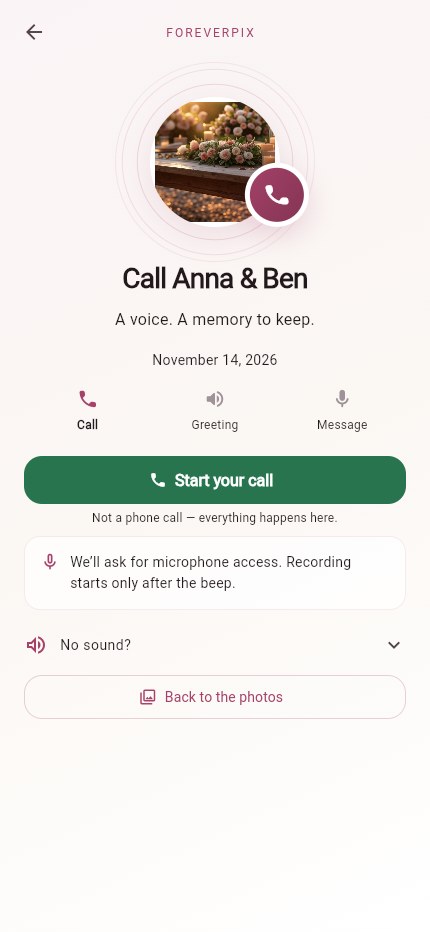
Open the audio guestbook from the gallery or its dedicated QR code.
Start the displayed call. Listen to or read the greeting, then start recording and allow microphone access.
Say your message, stop and listen back. Record again if you prefer.
Confirm the privacy notice and deliberately send. Keep the page open until receipt is confirmed; conversion can take longer.
Enlarge screenshotActual web interface with local sample data. Appearance and available controls may vary by device and permissions.Back to top ↑
20For hosts
Listen to and download messages
+
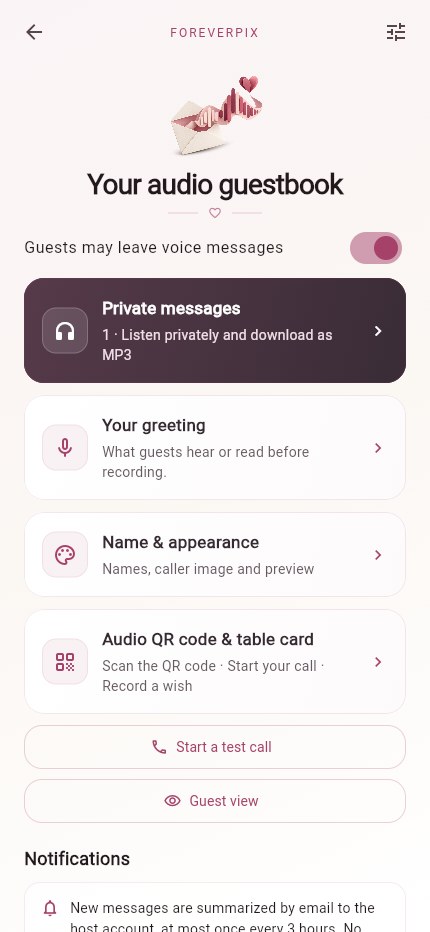
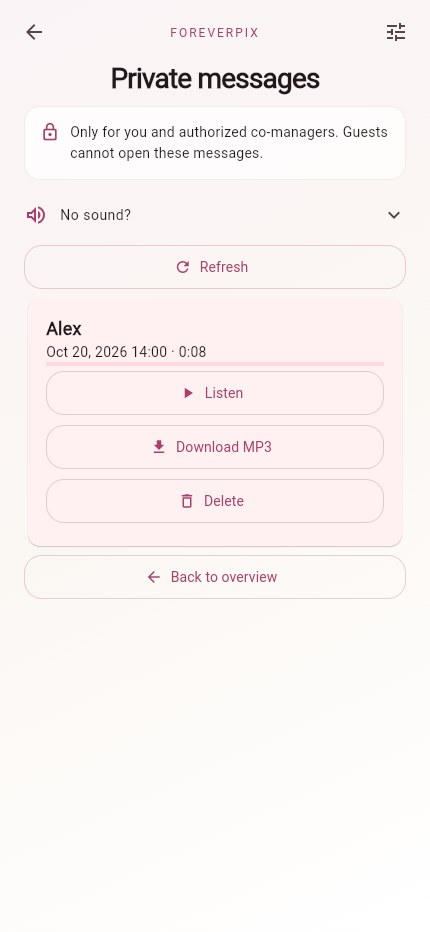
Only authorised hosts and co-managers can open the private inbox.
Open Audio management → Messages. A received recording may still be processing; wait until it is ready.
Tap Play. If silent, check media volume, Bluetooth output and, where relevant, the phone's silent switch.
Download ready messages individually as MP3 and verify each file. Use deletion only when intended.
Enlarge screenshotActual web interface with local sample data. Appearance and available controls may vary by device and permissions.Back to top ↑
♡
Photo booth and help
21For hosts
Set up and connect the photo booth
+
The separate browser photo booth also works without a gallery.
Open /fotobox/ on the intended device. Set occasion, names, layout and style, then take a test shot.
Connect with the normal guest QR or gallery slug and, if required, its password. Approved shots upload to the linked gallery, subject to upload limits and restrictions.
Place the device securely at eye level with good lighting, power and a reliable connection. Test saving, uploading and any printing before the event.
The exact error is more useful than repeated taps.
For uploads, check connection, file size, available space and host permission. Try one small file first.
For audio, check microphone permission, media volume and Bluetooth. Open directly in Safari or Chrome instead of an in-app messenger browser.
For access, check that you used the correct guest or host link and reload. Tell support the device, time and error without publishing secret access details.
Host access secured, name and date correct, design saved, plan and duration suitable?
Guest QR printed and scanned on another phone, password shared clearly, uploads allowed and tested?
Audio enabled deliberately, greeting and picture checked, your own test message received and downloaded? Photo booth powered, stable and printing tested if needed?
After the event, save photos and important voice messages in good time. Share content only with the necessary permission.
Are you invited to an event? Enter the gallery ID you received from the host here.
We use cookies
We use cookies and similar technologies from Google, Meta, OpenAI and AppLovin for statistics and ad measurement, partly processed in the USA. Only with your consent – you can withdraw it anytime via “Cookies”. Details in our
Privacy Policy.

 Enlarge screenshot